It's a common scene in households everywhere: one kid has the latest iPhone, another is using an older Android handed down from a cousin, and a grandparent is still getting used to a tablet that works differently from both. Everyone wants to stay connected and know the family is safe, but the phones don't always "talk" to each other the way the ads promise.
This isn't a rare edge case. According to the Pew Research Center's 2024 Teens, Social Media and Technology report, 95% of U.S. teens now have or have access to a smartphone — and in real households, that access comes through a mix of brands, hand-me-downs, and budget phones, not a matching set. If your family's devices feel like a patchwork, you're not doing it wrong. You just need a setup built for that reality.
Why Mixed Devices Cause Friction
Apple's Find My network works beautifully — as long as everyone is in the Apple ecosystem. Google's family tools work well too — as long as everyone has an Android. The trouble starts the moment a family splits across both, because:
- Apple's native "Find My" sharing doesn't extend to Android devices, and Google's equivalent doesn't fully reach iPhones.
- Notification styles, battery-saving settings, and permission menus look and behave differently on each operating system.
- A feature that's "automatic" on one phone might require a manual toggle on the other, which can make it look like sharing has quietly stopped working when really, a setting just needs adjusting.
None of this is a dealbreaker. It just means the family needs one shared layer that sits on top of both operating systems, rather than relying on each phone's built-in tool separately.
Choosing a Setup That Works for Everyone
The simplest fix is to use one app that both platforms support equally, rather than trying to stitch together Apple's and Google's separate tools. This is exactly the kind of gap a cross-platform family app like FamilyGuard is built to close — it works the same way on iPhone and Android, so a parent on one system and a teen on the other see the same map, the same check-ins, and the same one-tap SOS button, without anyone needing to switch phones.
When you're comparing options, a few things matter more than brand loyalty:
- True cross-platform parity. Does the app offer the same core features — location sharing, alerts, SOS — regardless of which phone someone has?
- Simple pairing. Adding a new family member shouldn't require fiddling with settings on both ends; a quick QR code scan is far easier for a nervous first-time user, young or old.
- Clear, mutual consent. Everyone in the family — including kids old enough to understand it — should be able to see who's sharing with whom, and why. Location sharing works best as a two-way, transparent arrangement within the family, not something done to someone without their knowledge.
A Simple Checklist for Each Phone
Once you've picked a shared app, a short settings check on each device prevents most of the "why isn't this working?" headaches down the line:
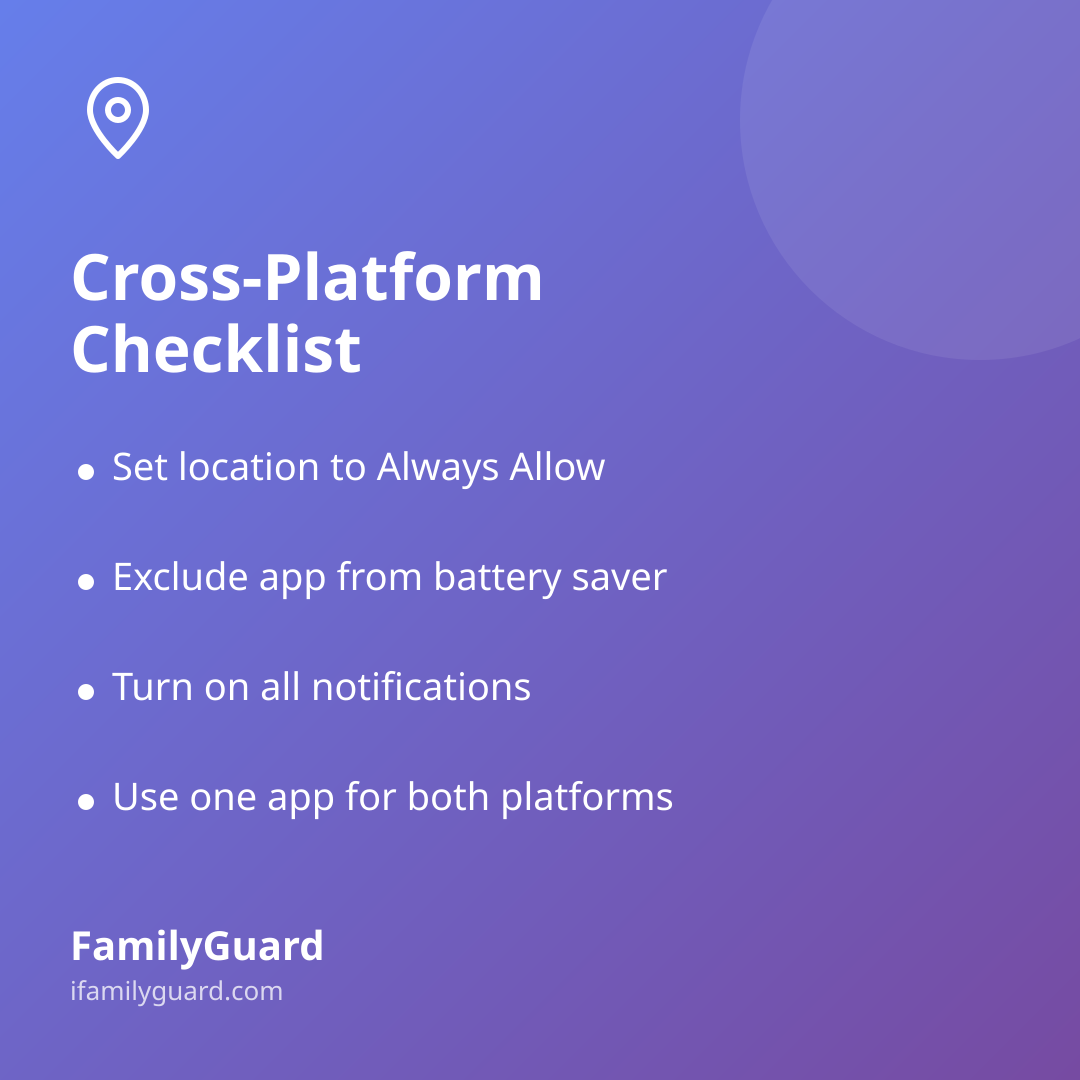
- Location permission: Set to "Always allow" or the equivalent rather than "only while using the app," so sharing continues when the screen is off.
- Background app refresh (iOS) or battery optimization (Android): Make sure the app is excluded from aggressive battery-saving modes that can silently pause location updates.
- Notifications: Turn these on so alerts, SOS messages, and check-ins actually reach the person they're meant for.
- Low Power Mode / Battery Saver: Both platforms can throttle background location when battery is low — worth a quick family conversation about charging habits, especially before trips or sleepovers.
It helps to walk through this list together the first time, phone by phone, rather than assuming everyone found the right menu on their own. A five-minute setup session avoids weeks of mixed signals.
Troubleshooting Together, Not Separately
When something looks off — a location that hasn't updated in hours, or a notification that never arrived — it's tempting to assume the app is broken. Often it's one of the platform-specific quirks above. A quick family habit that helps: if a dot on the map looks "stuck," send a quick chat message first ("hey, your location hasn't updated — can you check your settings?") before assuming the worst. This keeps the tool in its proper place — a way to stay connected — rather than a source of anxiety.
It's also worth revisiting the settings every so often, especially after a phone update. Operating system updates occasionally reset permissions or battery settings back to defaults, which can quietly undo a setup that was working fine the week before.
The Bigger Picture
A mixed-device household isn't a technical problem to solve once and forget — it's just part of modern family life, especially as hand-me-down phones, school-issued devices, and different upgrade cycles mean everyone ends up on a different system. The goal isn't to get everyone onto matching phones. It's to choose tools and habits that work regardless of what's in each person's pocket, so the family stays connected without anyone needing to become the household tech support.
With a shared, cross-platform approach and a few minutes of setup per device, the brand of phone becomes a non-issue — and the family can get back to what actually matters: knowing everyone's okay, and staying in touch on their own terms.