
Most families don't think much about location settings until something goes wrong: a dot on the map that hasn't moved in an hour, a "last seen" timestamp from this morning, or a phone that's mysteriously at 12% battery by lunchtime. Often, the culprit isn't a broken app — it's a setting most people never knew existed. Somewhere between "location on" and "location off" is a whole spectrum of accuracy, and understanding it can make your family's check-ins a lot more reliable.
Why Location Isn't Just "On" or "Off"
It's easy to assume location sharing is a simple switch. In reality, both iPhones and Android phones let you choose how precisely an app can see your location, not just whether it can see it at all. A phone can report an exact spot on a map, down to a few meters, or a rough general area, like "somewhere in this neighborhood."
This distinction exists mostly for privacy reasons — you might be comfortable letting a weather app know your city without handing it your exact address. But it matters just as much for family safety apps, because it directly affects how useful the information you see actually is.
What "Precise" and "Approximate" Actually Mean
On iPhones, this is called Precise Location. Apple explains that on iOS 14 and later, some apps can use Precise Location to determine your specific location using GPS, Bluetooth, and crowd-sourced Wi-Fi hotspots and cell towers; turning it off shares only your approximate location instead (Apple Support, "Turn Location Services and GPS on or off," accessed 2026).
Android phones have a similar concept through the device's location settings, which combine GPS with Wi-Fi networks, cell towers, and sensor data to determine where a phone is, and which apps are allowed to access that location (Google Android Help, "Manage your Android device's location settings," accessed 2026).
For a family safety app, this setting is the difference between "your daughter is at the library on Main Street" and "your daughter is somewhere in the downtown area." Both can be useful. They just answer different questions.
The Real Trade-off: Accuracy vs. Battery Life
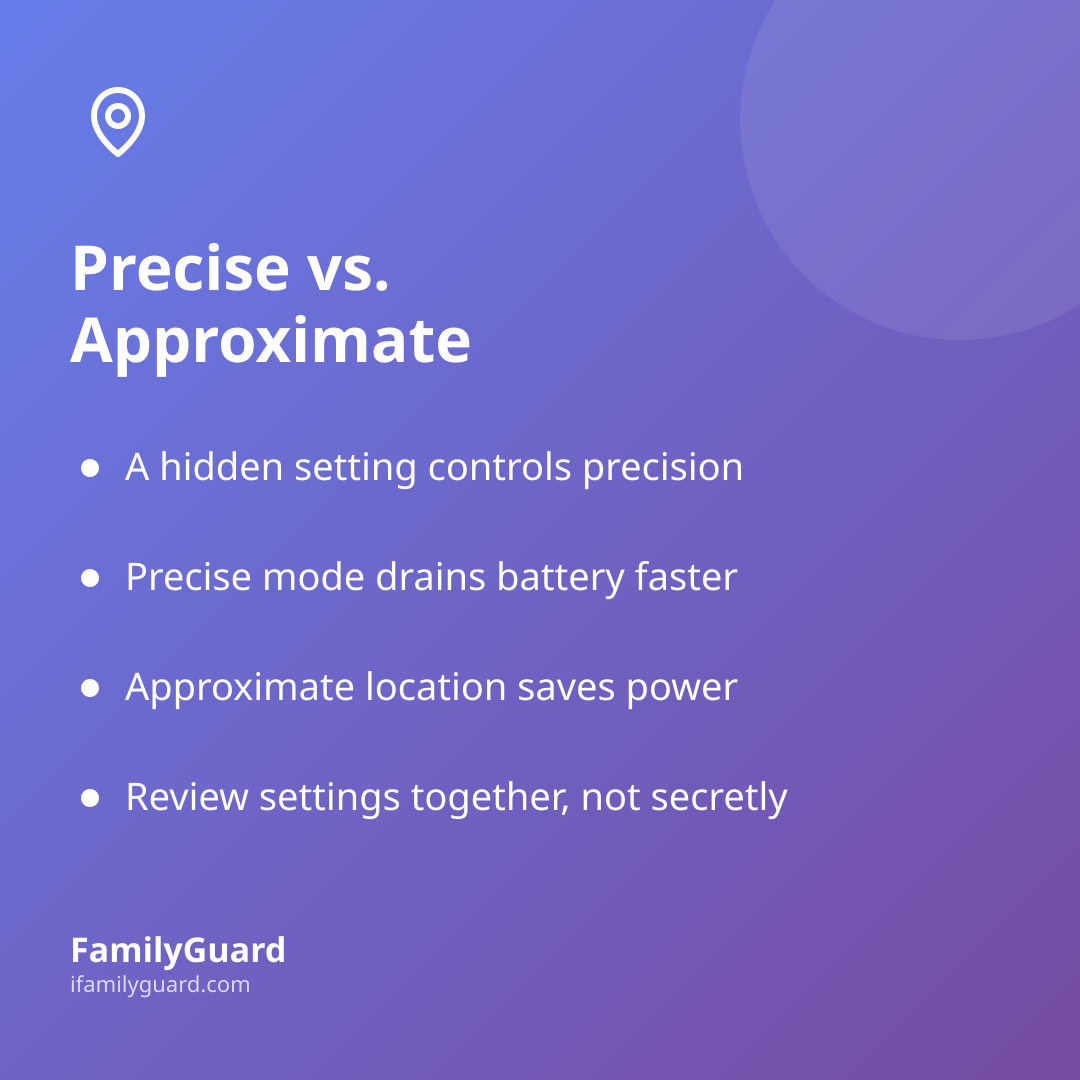
Here's the part that catches most families off guard: precision costs power. Continuously pinpointing an exact location means the phone is regularly checking in with GPS satellites and scanning nearby Wi-Fi and cellular signals — all of which draw on the battery. Approximate location, by contrast, can often be estimated from cell towers alone, using far less energy.
This is why a phone with several safety, weather, and social apps all requesting precise location can burn through battery noticeably faster than one set to approximate mode. It's not a flaw in any single app — it's simply the cost of frequent, exact positioning.
The good news is that most families don't need maximum precision, all the time, from every app. A useful family safety tool — FamilyGuard included — is designed to balance accuracy and battery use intelligently, refining location more precisely only when it's genuinely helpful, rather than draining the battery for no real benefit.
Finding the Right Balance for Your Family
There's no single "correct" setting for every family, but a few habits make the trade-off easier to manage:
- Match precision to the moment. Precise location matters more during a first solo outing, a trip, or a genuine "where are you?" moment. For everyday, low-stakes tracking, approximate can be perfectly sufficient.
- Check settings together, not secretly. Sitting down with your child to look at these settings — on both their phone and yours — keeps location sharing transparent and consent-based rather than something done behind their back.
- Don't stack unnecessary precision. If several apps all request precise location, only the ones that truly need it — like your family's safety app — should have it turned on.
- Keep an eye on battery health alongside accuracy. A phone in low-power mode may automatically reduce location precision to save charge, which is worth knowing before assuming an app has stopped working.
A Few Settings Worth Checking Together
Whichever devices your family uses, it's worth a quick walkthrough of these:
- On iPhone: Settings → Privacy & Security → Location Services → select the app → toggle Precise Location.
- On Android: Settings → Location → App location permissions, plus the separate "Improve location accuracy" or "Wi-Fi and Bluetooth scanning" options.
- Within any family safety app, check whether it has its own accuracy or update-frequency setting, separate from the phone's system setting.
Doing this together, rather than adjusting a child's phone without them noticing, reinforces that location sharing in your family is a two-way, transparent arrangement — not something imposed on them.
A Small Setting, A Lot of Peace of Mind
Location accuracy settings sound technical, but the idea behind them is simple: sometimes you need to know exactly where someone is, and sometimes a general sense is enough. Understanding the difference — and where the battery cost comes in — helps your family get reliable check-ins without phones dying by mid-afternoon. It's a small thing to set up once, and it quietly makes every "I'm here" a little more trustworthy.