
Your child opens a new app, taps through a few setup screens, and suddenly has an account that's either visible to the whole world or just to people they approve. Most kids never pause at that screen. Most parents never see it at all. But that one setting — public or private — quietly decides who can view a child's photos, comment on their posts, or find out where they go to school.
This isn't about locking everything down out of fear. It's about understanding what these settings actually do, so you and your child can make an informed choice together rather than leaving it to a default nobody really looked at.
What "Public" and "Private" Actually Control
The terms sound simple, but they cover more ground than most people realize:
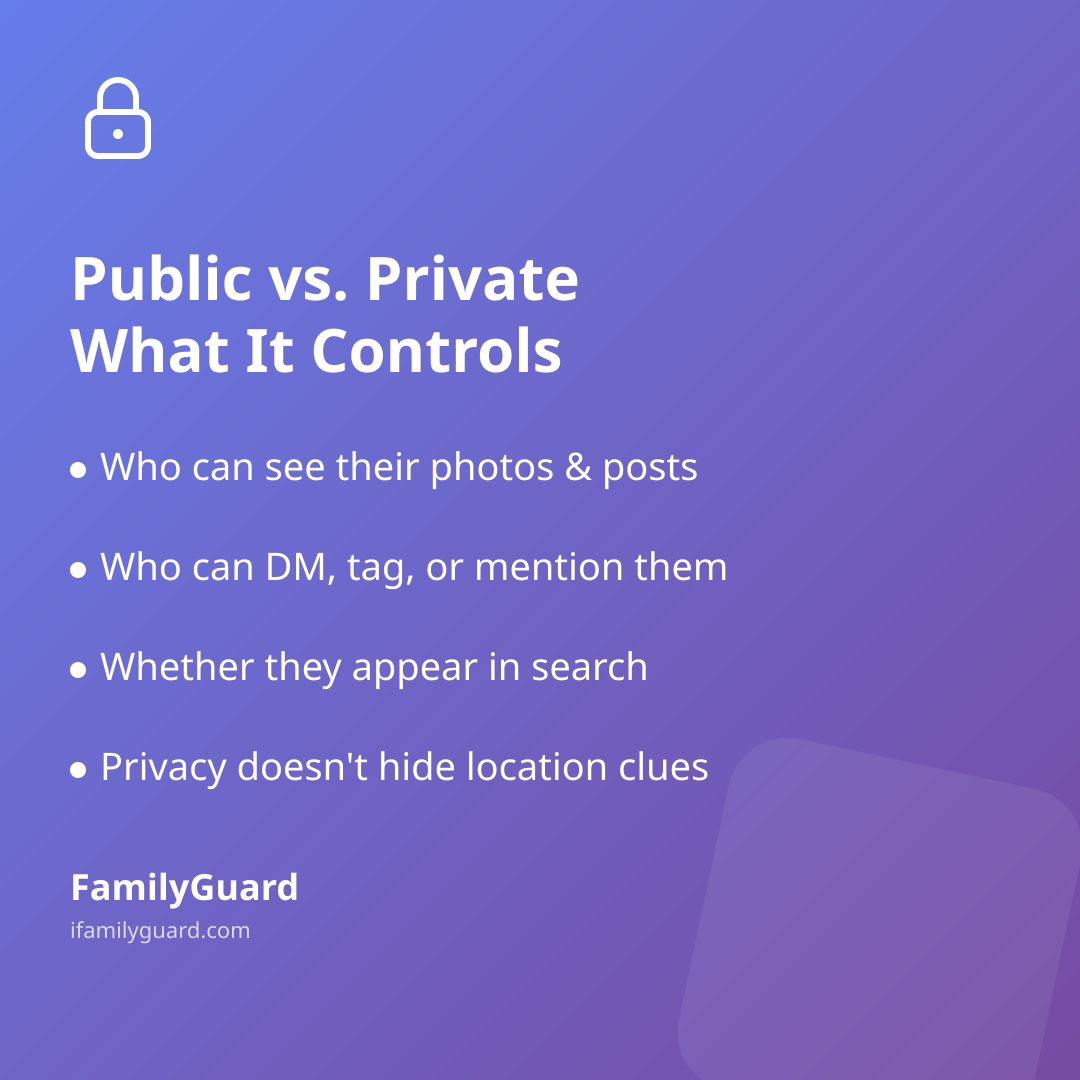
- Who sees posts: On a public account, anyone — followers or not, known or unknown — can see photos, videos, and captions. On a private account, only approved followers can.
- Who can contact them: Many platforms tie messaging permissions to the same setting, so a public account often means strangers can slide into direct messages more easily.
- Who can tag or mention them: Private settings usually limit tagging and mentions to people your child already follows.
- What shows up in search: Public profiles and posts can surface in search engines and in-app recommendation feeds, not just among the people who follow the account.
- Location and school info: Bios, tagged locations, and even background details in photos can reveal where a child lives, studies, or hangs out — public or private.
That last point matters: a private account restricts who sees the content, but it doesn't erase what's in the content. A private profile with a visible school logo and a location tag still tells a stranger (if they ever got access, say through a hacked follower's account) exactly where to find your child.
Why the Big Platforms Default to Private Now
This has become less of a judgment call than it used to be. Since 2024, Instagram has automatically placed teen accounts into private mode by default, restricting who can message them, tag them, or see their content unless they're an approved follower; for teens under 16, switching the account to public requires a parent's permission (Meta — Introducing Instagram Teen Accounts (2024)). In June 2026, Meta expanded a related protection — a default "13+ content setting" that limits teens' exposure to mature content in feeds and recommendations — globally across Instagram, Facebook, and Messenger (Meta — New 13+ Content Settings for Teen Accounts Expanding Globally (2026)).
Regulators have moved in the same direction. The U.S. Federal Trade Commission's amended Children's Online Privacy Protection Rule, finalized in January 2025, now requires separate parental consent before a child's data can be shared with third parties for targeted advertising, and limits how long platforms can retain that data (Federal Trade Commission — FTC Finalizes Changes to Children's Privacy Rule (2025)).
In other words, "private by default" is becoming the platforms' own baseline, not just cautious parenting advice, and regulators are tightening the rules around children's data at the same time. That's a helpful starting point — but defaults change, accounts get re-created, and not every app your child uses follows the same rules. A ten-minute check-in is still worth doing.
How to Walk Through the Settings Together
The goal isn't to audit your child's phone while they watch nervously. It's a shared look, framed as routine maintenance — the same way you'd check a bike's brakes before a long ride.
- Open the settings side by side. Ask your child to pull up the privacy or account settings on whatever apps they use most. Let them show you, rather than taking the phone yourself.
- Confirm the account is private if that's your family's agreement, and check whether "suggest to others" or "discoverable by contacts" toggles are on or off.
- Review the follower or friend list together — not to interrogate every name, but to ask the simple question: "Do you actually know this person?"
- Check the bio and profile photo for anything that reveals a school name, home neighborhood, or routine (like "at the park every day after school").
- Look at who can comment, message, or tag — these are often separate toggles from the main public/private switch.
Frame this as something you do for your own accounts too. Kids notice when a rule only applies to them, and it lands better when a parent says, "I just checked mine — want to check yours with me?"
Private Isn't the Same as Safe
A private account narrows the audience, but it doesn't substitute for judgment about what's shared in the first place. A tight follower list can still include an acquaintance from camp, a friend-of-a-friend, or someone added during a moment of wanting to seem popular. And a private account only stays private if your child doesn't accidentally approve a follow request from someone they don't actually know.
It helps to talk through a few real scenarios rather than abstract rules:
- A follow request from someone with no mutual friends and a near-empty profile.
- A direct message from someone claiming to know a friend, asking to "just chat" off the main app.
- A post that feels harmless alone but, combined with others, maps out a weekly schedule.
These conversations work best as ongoing and low-pressure, not a single lecture. The aim is for your child to recognize the pattern themselves next time, rather than needing you to spot it for them.
Keeping the Conversation Going as They Grow
Privacy settings aren't a one-time setup task — they're worth revisiting as your child moves between apps, gets a new phone, or simply grows into wanting more independence. What makes sense for a 12-year-old's first account looks different from what a 16-year-old manages on their own.
The same principle that works for online privacy works for everyday family safety: agreements built on openness tend to hold up better than rules enforced in secret. That's the same thinking behind how families use tools like FamilyGuard for location sharing — visible to everyone involved, set up together, and adjusted as trust and independence grow, rather than something discovered after the fact.
A quick privacy check-in, done together every few months, costs very little time and gives both of you a clearer, shared picture of who can see what — which is really the whole point.

Sources
- Meta — Introducing Instagram Teen Accounts: Built-In Protections for Teens, Peace of Mind for Parents (2024)
- Meta — New 13+ Content Settings for Teen Accounts Expanding Globally on Instagram, Facebook, Messenger (2026)
- Federal Trade Commission — FTC Finalizes Changes to Children's Privacy Rule Limiting Companies' Ability to Monetize Kids' Data (2025)