It's one of the quiet rites of passage in a lot of households: the older sibling gets a new phone, and the old one lands in the younger one's hands. It feels practical, even sentimental. But a hand-me-down phone isn't the same as a brand-new one, and it deserves its own moment of attention before you hand it over — not because something is wrong, but because a fresh start makes everything that follows easier.
This is a genuinely common situation. Mobile devices are reaching kids younger every year, and many of those first devices aren't new purchases at all — they're whatever was already in a drawer. According to Common Sense Media's 2025 Census on media use by kids zero to eight, 51% of children age 8 and younger already have their own mobile device, and ownership climbs steadily through the preschool and early elementary years. For many families, the "first phone" conversation is really a "first hand-me-down" conversation.
Why a Fresh Start Matters
An old phone carries more than its hardware forward. It carries accounts, saved passwords, old photos, app histories, and settings that were calibrated for a different kid at a different age. None of that is dangerous on its own, but it's also not something you want quietly tagging along into a younger child's first experience with a device.
Starting clean also sidesteps an awkward dynamic: if the new owner stumbles into an older sibling's old messages or a forgotten app login, it can create friction between kids and confusion about whose device this now actually is. A proper reset draws a clear line — this phone has a new owner now, with new rules suited to their age.
Wipe It Properly, Not Just "Delete a Few Things"
Deleting a few apps or signing out of one account isn't the same as a true reset. The Federal Trade Commission's guide to removing personal information from a phone lays out a simple sequence worth following before any device changes hands, even inside the same family:
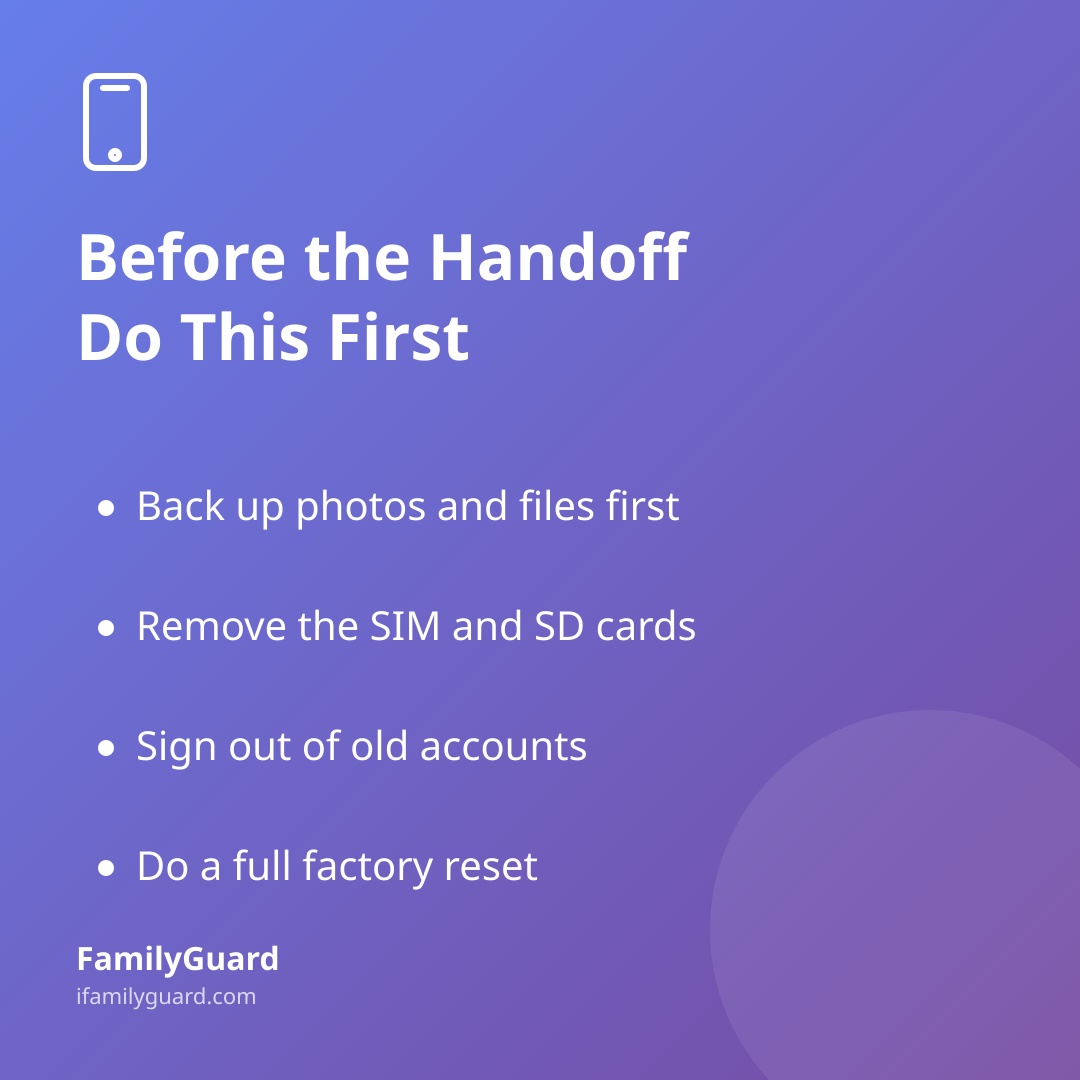
- Back up first. Save anything from the old owner's photos, notes, or files that they want to keep, before anything is erased.
- Remove SIM and SD cards. These can hold personal information independent of the phone's internal storage.
- Sign out of accounts tied to the previous owner. App stores, cloud backups, email, and messaging accounts should all be unlinked from the device.
- Do a full factory reset. Use the phone or tablet's built-in settings (Apple and Android both have straightforward reset tools) rather than just clearing a few folders — this clears contacts, messages, photos, and browsing history.
- Update the phone number on file with any accounts or services if the number itself is also changing hands.
A factory reset takes a few minutes and genuinely resolves the awkward problem of old data lingering where it shouldn't. It's worth doing even for a phone that's just moving from one bedroom to another.
Set It Up Like a First Phone, Not a Leftover One
Once the device is clean, treat the setup as if it were brand new — because for this child, it is. That means choosing settings based on who's using it now, not who used it before.
A few things worth deciding together, as a family, before the phone is handed over:
- Which apps actually belong on it. An app that made sense for a 14-year-old sibling may not make sense for a 9-year-old. Start lighter and add apps as trust and need grow.
- What the screen-time and content settings should be for this child's age, not the age of whoever had the phone before.
- Whether the phone number is new or recycled. If it's being reused, let the child's new contacts know, and consider whether any old contacts should carry over at all.
- What the family's basic expectations are — where the phone stays at bedtime, who it's okay to talk to, and how check-ins will work.
Walking through these as a short conversation, rather than assuming the old settings will just carry over, helps the child feel like this is genuinely their device and their responsibility — not a borrowed one.
Reconnect the Family Loop
If your family already uses location sharing, a group chat, or check-in habits, a device handoff is a natural moment to re-pair everything rather than letting old connections linger from the previous owner. This is also a good time to talk about what sharing location means for this child specifically — not as something imposed on them, but as a two-way, visible arrangement the whole family uses and understands together.
Apps like FamilyGuard make this part simple: pairing the "new" device with the family happens with a quick QR code scan, so everyone's dot on the map, SOS button, and family chat reflect who's actually using the phone now, with the child's full knowledge of how it works.
A Simple Habit Worth Repeating
Hand-me-down phones aren't going anywhere — they're a sensible, budget-friendly way to get kids their first device, and there's nothing wrong with that choice. The only extra step is treating the handoff as its own small event: wipe it properly, set it up for the child who'll actually be using it, and reconnect your family's safety habits around the device as it is today. It takes less time than setting up a new phone from scratch, and it means the phone truly belongs to its new owner from the very first tap.