Somewhere between the backpack and the bus stop, your child's school day has quietly moved online. Homework lands in Google Classroom. Report cards show up in a parent portal. Art projects get uploaded to Seesaw, spelling tests happen on a tablet, and a sick day might mean logging into Zoom from the kitchen table. None of this is new or alarming — it's just how school works now. But it does mean your family is managing a small pile of logins, apps, and bits of personal information that are worth a few minutes of attention.
This isn't about distrusting your child's school. Most educators and IT staff work hard to choose safe tools. It's simply about being an informed, involved parent in a part of your child's life that now happens, in part, on a screen — the same way you'd ask about a field trip or check a permission slip.
Why school tech deserves a quick look
Parents are often surprised by how many tools a single school year touches — a learning management system, a math app, a reading app, a messaging platform for teacher updates, maybe a library catalog login. Each one may store a child's name, birthdate, grades, or even photos and voice recordings.
This isn't just a hunch. A national poll commissioned by Common Sense Media found that almost six in ten parents say they've heard little or nothing about schools allowing private companies to store personal data about their kids — even though a large majority of parents say they're concerned about how that information could be used. In other words, most families aren't being secretive or careless; the information about what's collected and why just doesn't always make its way home in a clear, simple form.
The good news is that regulation in this space is tightening, not loosening. In January 2025, the Federal Trade Commission finalized updates to the Children's Online Privacy Protection Rule (COPPA), which now requires companies to get separate parental consent before sharing a child's data with third parties for things like targeted advertising, and limits how long children's personal information can be kept. That protection applies to many of the apps schools use, which is reassuring — but it doesn't replace a parent's own awareness of what their child is logging into.
What's worth knowing about each app
You don't need to become a privacy expert to stay reasonably informed. A few simple questions, asked once at the start of the school year, go a long way:
- What is this app actually for? Is it for turning in homework, communicating with the teacher, or practicing a specific skill like typing or reading?
- Is it school-issued or optional? Required platforms (like a grade portal) are different from optional extras a teacher found online.
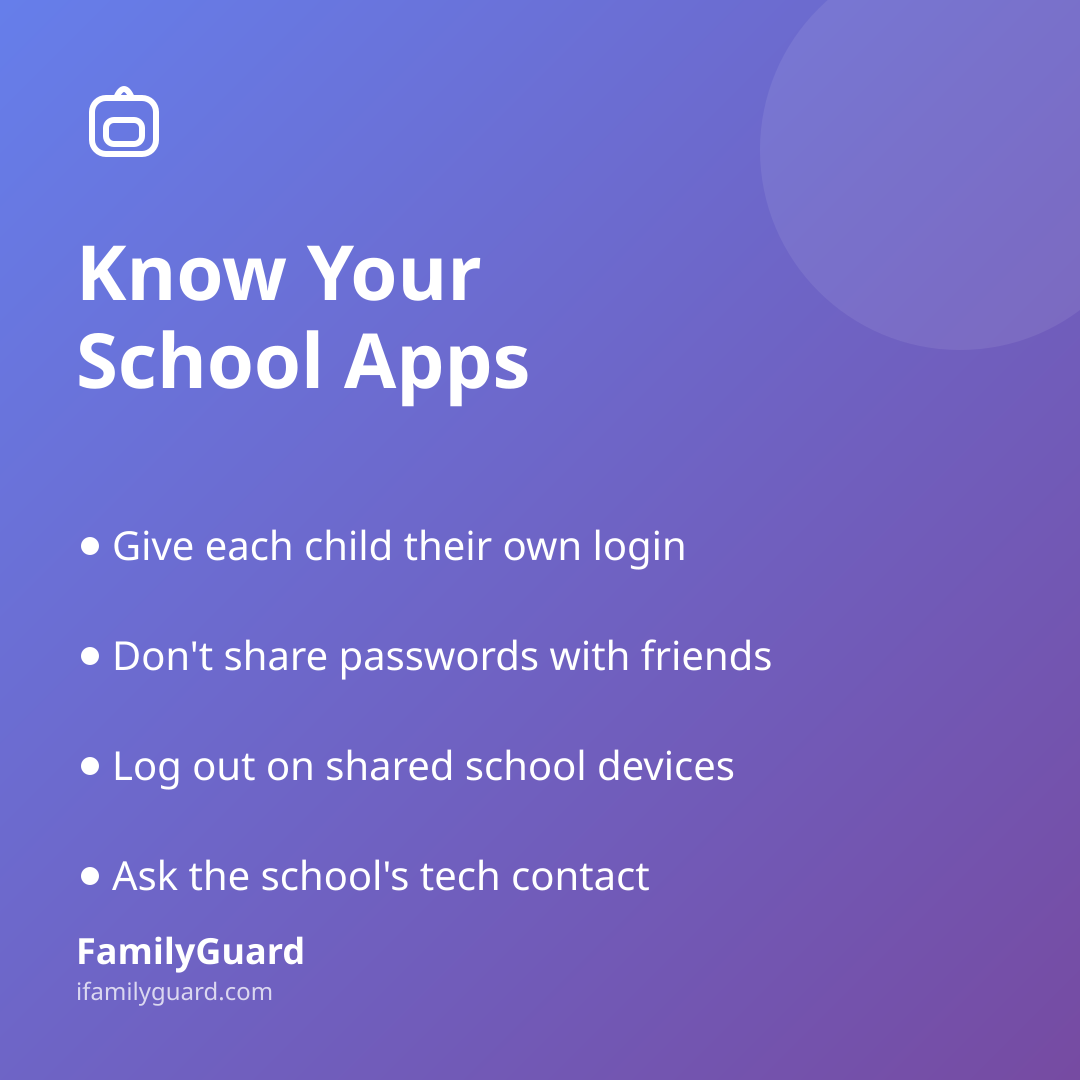
- Does my child have their own login, or a shared classroom one? Individual accounts are easier to keep track of and usually more secure than one shared password for a whole class.
- Where does the password live? Written on a sticker in the front of a notebook is common for younger kids — just make sure it isn't also posted somewhere public, like on a shared family device's home screen.
- Who can I ask if I have questions? Most schools have a tech coordinator or front-office contact who can explain what a given platform does with student information.
If this feels like a lot to track, you're not imagining it — a typical classroom can involve a handful of different platforms in a single semester. A simple running note, even a sticky note on the fridge, with each app name, login, and what it's for, can turn a confusing pile of accounts into something manageable.
Good login habits, taught early
School accounts are often the first "real" logins kids ever manage, which makes them a great low-stakes place to build good habits that will matter a lot more later.
- Use a password that isn't the same one used for a gaming account or anything else — if one gets guessed, the damage stays contained.
- Never share a password with a classmate, even a close friend, and explain why: it's not about trust, it's about keeping their own work and information separate from someone else's.
- Log out on shared school devices, especially tablets or library computers that other students use right after them.
- If something looks strange after logging in — missing homework, a message that wasn't expected — tell a teacher or parent rather than trying to fix it alone.
These habits don't need a lecture. A two-minute conversation while setting up a new account together is usually enough, and it sets the tone that logins are a normal, manageable part of life rather than something scary.
When school tech overlaps with family safety
Some school platforms double as a quiet layer of everyday coordination — a reminder of a late bus, a note that practice was moved, a message that your child stayed after for a club meeting. That's genuinely useful, and it's worth treating it the same way you would any other family check-in tool: know who else can see the messages, and make sure your child knows it's fine to loop you in if something in a school chat or app feels off.
Outside of school hours, many families use a tool like FamilyGuard to stay loosely connected through the day — a quick location check before an after-school pickup, or a one-tap way to reach out if plans change — but that's a separate, consent-based layer that belongs to the family, not the classroom. Keeping school accounts and family coordination tools distinct helps your child understand which spaces are shared with teachers and classmates, and which are just between family members.
A light-touch yearly check-in
You don't need a formal audit. At the start of each school year, or whenever a new app comes home in a backpack flyer, take a few minutes to:
- Ask your child what apps they're using for class this year.
- Glance at the privacy or permissions settings on anything with a camera, microphone, or chat feature.
- Make sure logins are written down somewhere private, not posted publicly.
- Remind your child that school accounts are for schoolwork, not personal chatting with strangers or sharing outside the class.
Most school technology is genuinely helpful — it's how homework gets turned in on time and how a sick day doesn't mean falling behind. A little bit of attention at the start of the year, paired with a few steady habits, is usually all it takes to keep that convenience working in your family's favor.
The goal isn't to monitor every app your child touches at school — it's to understand the landscape well enough to ask a good question when something seems off, and to help your child build steady, sensible habits around their own accounts.