Most families already know passwords matter. What trips them up isn't the knowledge — it's the habit. A password gets reused because it's easier to remember, written on a sticky note because it's easier to find, or shared between siblings because it's easier than setting up separate logins. None of that is carelessness. It's just what happens when security isn't built into the daily routine.
The good news is that good password habits don't require becoming a tech expert. A few small, repeatable choices — made together as a family — go a long way toward keeping everyone's accounts, photos, and messages where they belong.
Why length beats complexity
For years, the advice was to mix capital letters, symbols, and numbers into short, cryptic passwords. That guidance has changed. The National Institute of Standards and Technology (NIST), which sets the technical benchmarks many security tools follow, now emphasizes length over complicated character tricks — recommending that systems allow passwords of at least 64 characters and discouraging forced complexity rules that just push people toward predictable patterns like "P@ssw0rd1!". You can read the full technical guidance in NIST Special Publication 800-63B.
In practice, this means a long, memorable passphrase — several unrelated words strung together, like purple-tuesday-garden-lamp — is both easier for a kid to remember and harder for an outsider to guess than a short string of symbols. It's a small shift, but it removes the main reason passwords get reused: they're finally easy to hold in your head.
A simple family rule of thumb
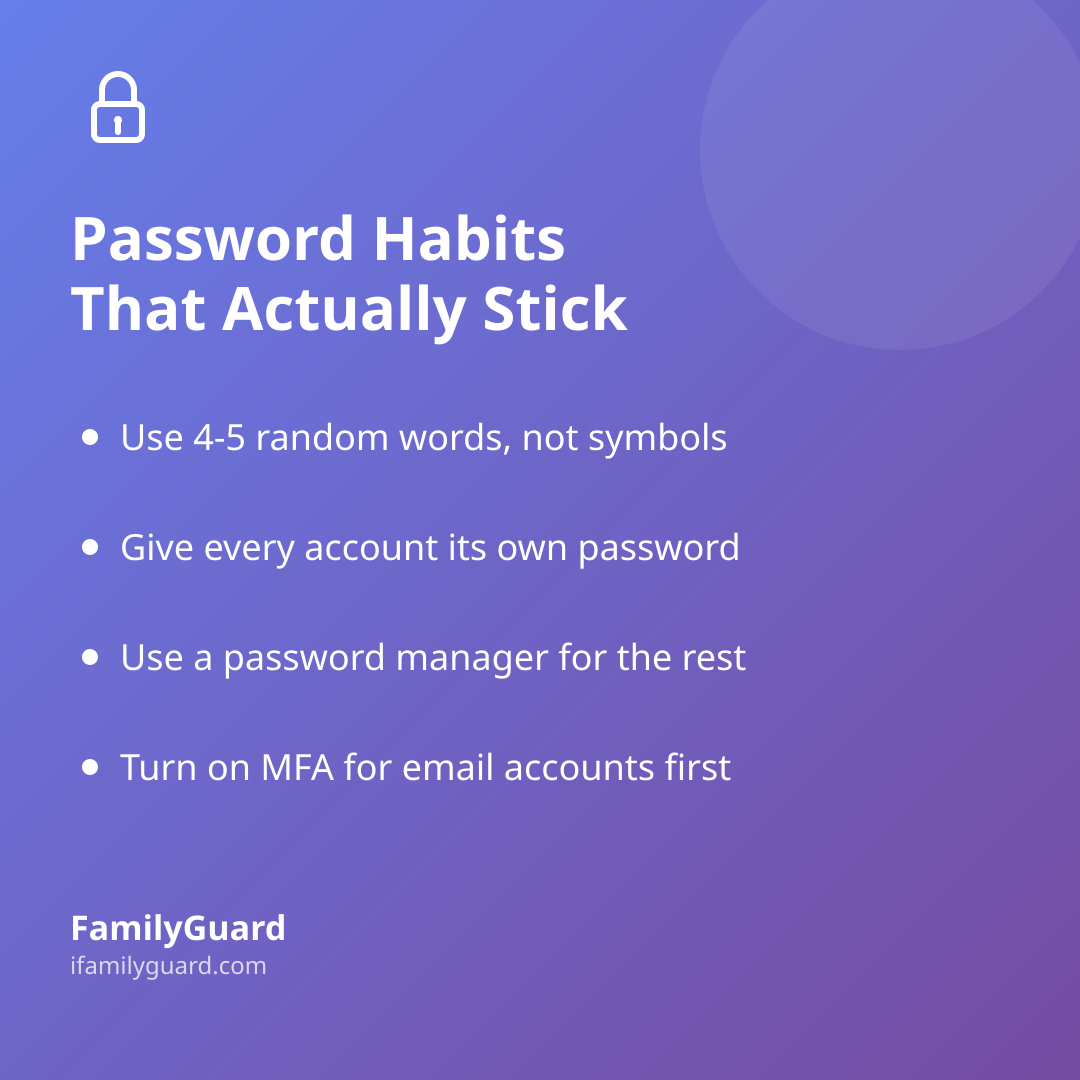
- Longer is better than "cleverer" — four or five random words beat a short password stuffed with symbols.
- Every important account gets its own password — email, school portal, gaming account, and social media should never share one.
- Nobody emails or texts a password, even to a parent or sibling — if someone asks for one that way, treat it as a red flag.
Let a password manager carry the weight
No one — adult or child — can realistically memorize a dozen unique passphrases. That's exactly the problem password managers solve: one strong master password unlocks a vault that generates and remembers the rest. The Federal Trade Commission's guidance on protecting kids' devices specifically recommends helping teenagers set up a password manager or use their device's built-in password generator, rather than relying on memory or repetition.
For younger kids who aren't ready for their own manager, it's reasonable for a parent to hold onto login details for now — openly, with the child's knowledge, and with a plan to hand over more control as they get older. That's the same spirit FamilyGuard takes with location sharing: safety works best when it's transparent and age-appropriate, not something done quietly behind a child's back.
Add a second lock: multi-factor authentication
A password is one lock on the door. Multi-factor authentication (MFA) adds a second one — usually a code sent to a phone, a tap in an authenticator app, or a fingerprint — so that even if a password leaks, a stranger still can't get in. The Cybersecurity and Infrastructure Security Agency puts it plainly: "a password isn't enough to keep you safe online", and recommends turning on MFA for email, social media, shopping, financial, gaming, and streaming accounts.
Email is worth prioritizing first in your family, since it's usually the account used to reset everything else. After that, work through social media and gaming accounts together. Where there's a choice between methods, an authentication app or a fingerprint/face scan is generally a sturdier option than a text message code, since texts can occasionally be intercepted.
A short MFA checklist to work through as a family
- Turn on MFA for every family email account first.
- Move on to social media, school portals, and gaming or streaming logins.
- Prefer an authenticator app or biometric option over text-message codes when it's available.
- Make sure at least one trusted adult knows how to help a child recover an account if a device is lost.
Making it a habit, not a lecture
Password hygiene sticks best when it's framed as a shared skill rather than a rule handed down. Instead of a one-time lecture, try folding it into moments that already come up naturally — setting up a new game account, getting a first email address, or unboxing a first phone. Ask your child to help pick their own passphrase formula, and talk through what makes one guessable (a pet's name, a birthday, a favorite team) versus what makes one sturdy.
It also helps to normalize occasional check-ins without turning them into surveillance. A quick "let's make sure your accounts still have strong, separate passwords" once or twice a year, alongside updating a password manager together, keeps the habit alive without making your child feel watched. The goal is a household where good account hygiene is just something everyone does — quietly, consistently, and without anyone needing to be reminded twice.
A few habits worth revisiting together
- Swap short, memorized passwords for longer passphrases on the accounts that matter most.
- Set up a family password manager so no one has to keep dozens of logins in their head.
- Turn on multi-factor authentication, starting with email.
- Review account security together once or twice a year — a calm habit, not a one-time scramble.
None of this needs to happen overnight. Pick one account this week, make it stronger together, and let the habit grow from there.