
You glance at the family map and the dot for your teenager hasn't moved in two hours, even though you know they left for practice a while ago. Before you assume the worst, it's worth knowing that this is almost always a settings problem, not a sign that something is wrong. Phones are built to save battery first and share information second, and that trade-off can quietly interfere with location sharing unless a few settings are set up correctly.
This guide walks through the permissions and battery settings that matter most, so the whole family's map stays accurate without anyone's phone dying by 3 p.m.
Why your phone "fights" location sharing
Both iPhones and Android phones are designed to extend battery life by limiting what happens in the background — that is, when you're not actively looking at an app. Location tracking uses GPS, Wi-Fi, and cell signals, all of which draw power, so the operating system is cautious about letting any app use location freely once it's not on screen.
On iPhones, this shows up as a choice between letting an app use your location "While Using the App" or "Always." Only the "Always" setting lets an app check in from the background, which is what a family location-sharing app needs to keep the map current. Apple explains these permission levels and how to manage them for each app in its own support documentation, which is worth a quick read if you've never looked at it before (Apple Support, 2026).
Android takes a similar but more layered approach. Beyond the location permission itself, Android can place individual apps into "Restricted," "Optimized," or "Unrestricted" battery states. A restricted app is fully prevented from running in the background, which is exactly the kind of task a location-sharing app relies on. Google's own developer documentation describes how these background restrictions work and why they can prevent an app from updating reliably when the screen is off (Android Developers, 2026).
None of this is a flaw in any particular app. It's just how modern phones balance battery life against the dozens of apps asking for a slice of it.
A quick permissions check for each phone
If a family member's location keeps freezing or lagging, start here. It takes about two minutes per phone.
On iPhone
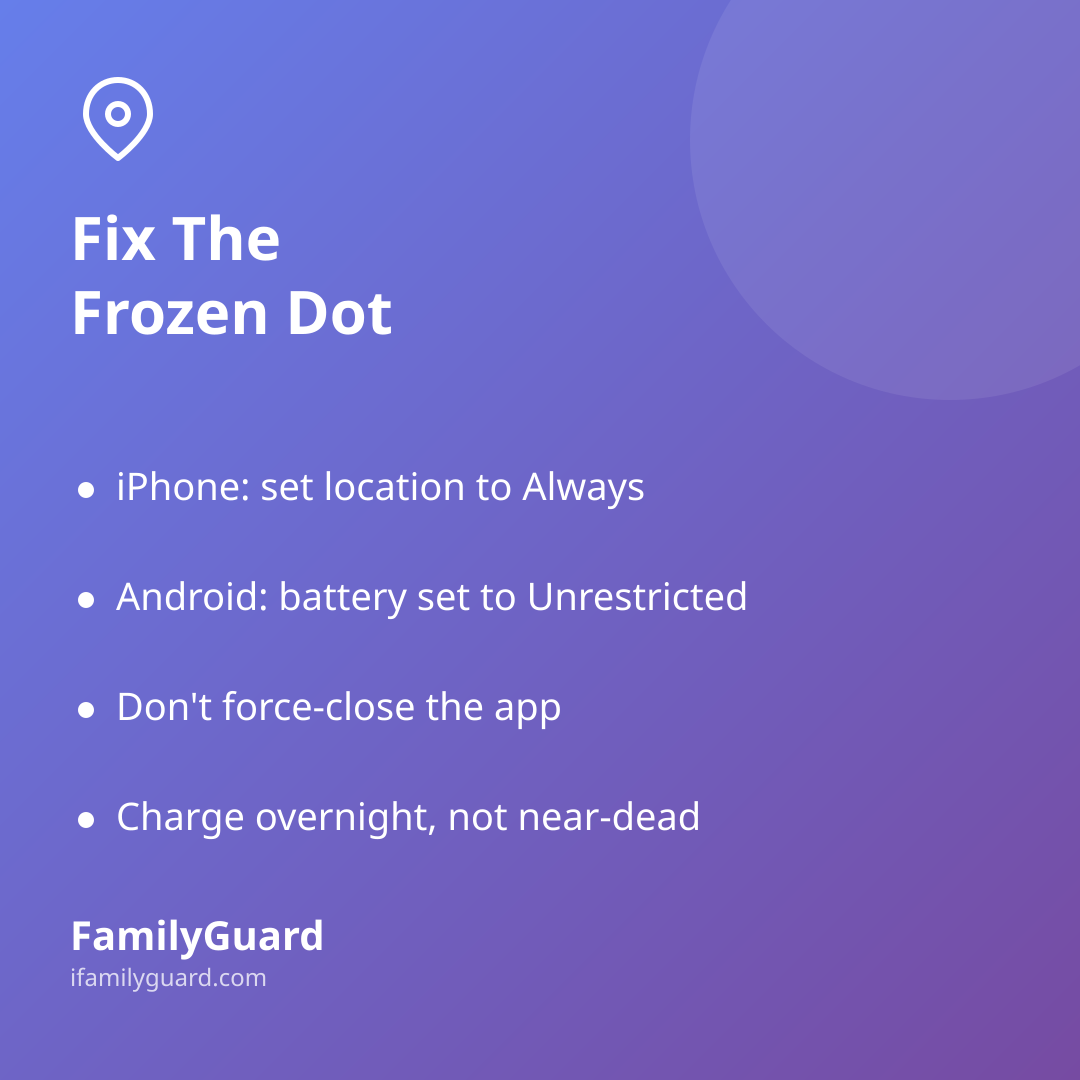
- Go to Settings > Privacy & Security > Location Services and make sure Location Services is turned on overall.
- Scroll to your family app and set its permission to Always, not "While Using the App."
- Check Settings > General > Background App Refresh and confirm the app is allowed to refresh in the background.
- If "Precise Location" is toggled off for the app, turn it back on so the map reflects an accurate spot rather than a wide, approximate area.
On Android
- Go to Settings > Apps, select the family app, and open its Permissions to confirm location access is set to "Allow all the time."
- In the same app settings, find Battery and choose Unrestricted rather than "Optimized" or "Restricted."
- Some phone brands add their own extra battery manager on top of Android's — check your phone's main Battery or Device Care settings for a separate list of protected or "never sleep" apps.
Battery habits that keep sharing steady
A few everyday habits make location sharing far more dependable, without draining the battery nearly as much as people assume:
- Avoid Low Power Mode for long stretches. It's fine in a pinch, but it deliberately throttles background activity, including location updates.
- Keep the app updated. App updates often include fixes specifically for how the app behaves under each phone's latest battery rules.
- Don't force-close the app from the recent-apps screen. On many phones, swiping an app away is interpreted as "the user doesn't want this running," which can quietly stop background location until the app is reopened.
- Charge overnight, not just when it's nearly dead. A phone that's chronically low on battery is more likely to have its operating system aggressively restrict background apps to stretch out the remaining charge.
These settings matter most for families who rely on location sharing for everyday peace of mind — knowing a child made it to school, or that everyone arrived home safely after practice. An app like FamilyGuard is built around consent-based sharing within the family, so getting the permissions right on both ends means fewer "where are you?" texts and more confidence that the map is simply accurate.
When it's a setting, not a signal
It's worth saying clearly: a frozen dot is, almost always, a technical hiccup, not a message. Before assuming the worst, it helps to rule out the mundane explanation first — a dead battery, a toggled-off permission, an app that got swiped away by accident.
That said, if a teenager has deliberately turned off location sharing, that's a different, and genuinely important, conversation — one about trust and independence rather than settings. The two situations can look identical on a map, so it's worth asking before assuming either one.
A calmer way to think about the dot
Location sharing works best when it's treated as infrastructure, like Wi-Fi or a charger cable, something you set up once, check occasionally, and otherwise don't think about. A short settings check after getting a new phone, after a major software update, or any time the map starts acting unreliable is usually all it takes to keep things running smoothly.
The goal isn't a perfect, always-on dot. It's a family map that's dependable enough that everyone can trust it, and relaxed enough that nobody feels like they're being watched.