Picture this: your child's phone is sitting on the sidewalk after a scooter spill, screen cracked but lit up. A passerby wants to help but has no way to reach you — the phone is locked, and so is every bit of useful information inside it. There's a simple fix for this exact moment, and most families never set it up: a lock screen that quietly shares who to call and what matters medically, without ever needing a passcode.
This isn't about adding more rules to your child's phone. It's a five-minute setup that turns a locked device into a tool that can reach you, even when your child can't speak for themselves.
Why the Lock Screen Matters More Than You'd Think
Most emergencies involving kids and phones aren't dramatic. They're a fall at the park, a bad asthma flare on a field trip, a bike accident on the way home. In those moments, the person standing over your child — a teacher, a coach, a stranger who stopped to help — usually has a phone in hand but no idea who to call.
Both Apple and Google have built a workaround for exactly this gap. On an iPhone, Apple explains that Medical ID helps first responders access critical medical information from the Lock screen without needing a passcode, including allergies, conditions, and who to contact. On Android, Google's Personal Safety app (listed in your app drawer simply as "Safety") lets you add personal emergency info — like blood type, allergies, and medications — visible straight from the lock screen.
Neither feature requires unlocking the phone, logging into an account, or even knowing the passcode. That's the whole point: the information is there precisely for the moments when your child can't provide it.
Setting It Up on iPhone
Apple's Medical ID lives inside the Health app, and it only takes a few steps:
- Open the Health app, tap your profile picture, then tap Medical ID.
- Fill in allergies, conditions, and any medications — only what feels relevant and comfortable to share.
- Add emergency contacts and their relationship to your child (you, another parent, a grandparent).
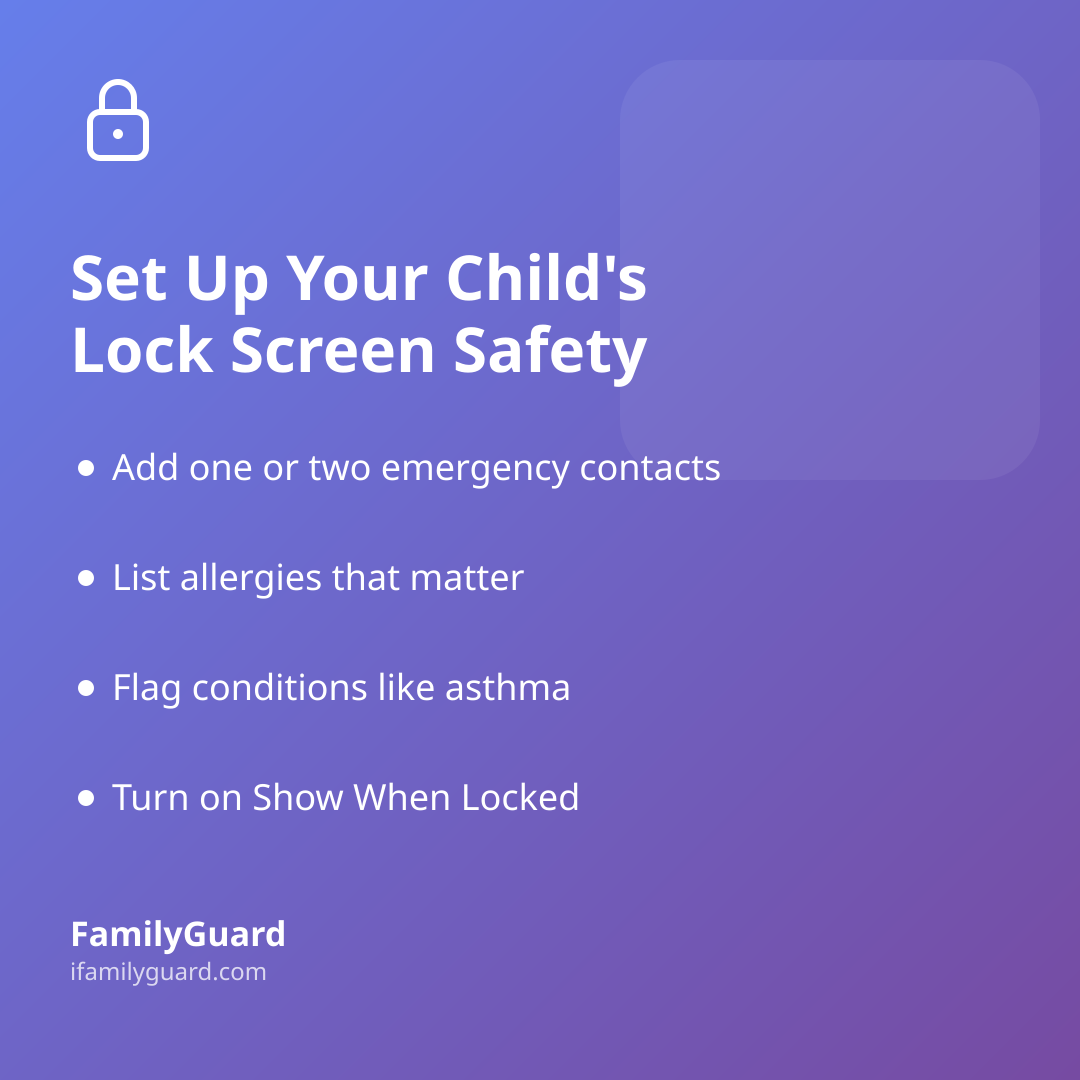
- Turn on Show When Locked so the information appears without a passcode.
- Turn on Share During Emergency Call so this information is shared automatically if your child ever dials emergency services.
Once set up, anyone can tap "Emergency" on the lock screen, then "Medical ID," and reach a contact directly — no passcode needed, as Apple's support guide confirms.
Setting It Up on Android
The process is just as quick through Android's Safety app (this requires Android 12 or later):
- Open the Safety app and sign in with the Google account linked to the phone.
- Tap Your info, then Medical information to add relevant health details.
- Tap Emergency contacts and add the people who should be called.
- Tap Emergency info access, then Show when locked.
As Google notes, this information becomes visible from the lock screen to anyone who picks up the phone — which is exactly the trade-off worth making for a child's device. If privacy around a specific detail feels uncomfortable, it's fine to leave it out; even just a contact name and number is a meaningful safety net on its own.
What to Actually Put In It
You don't need to document your child's entire medical history. Keep it practical:
- One or two emergency contacts — ideally people likely to pick up quickly, not just "Mom" and "Dad" if you're often in meetings.
- Allergies that matter in a crisis — especially anything that would change how a responder treats your child (bee stings, penicillin, severe food allergies).
- Any condition a stranger should know immediately — asthma, diabetes, epilepsy, or a hearing or communication difference that might affect how someone should approach your child.
- Nothing else — this is a quick-reference card, not a full medical chart. More isn't better here; clearer is.
Have the Conversation With Your Child First
Because this information is visible to anyone holding the phone, it's worth explaining to your child what you've set up and why — not as a scary "just in case" talk, but as a simple, matter-of-fact one. Something like: "If you're ever hurt and can't talk, this helps someone find me fast." Most kids find this reassuring rather than unsettling, especially once they understand it only shows up on the emergency screen, not every time someone glances at their phone.
This kind of setup fits naturally alongside the other pieces of a family's safety routine — knowing how to use a smartwatch before a first phone, practicing the one-tap habit of asking for help, or having a family emergency plan everyone's walked through together. Apps like FamilyGuard can complement this by giving your family a shared, consent-based way to check in and share location — but the lock screen setup above works independently of any app, which is exactly why it's worth doing today.
A Small Setup, A Real Difference
None of this requires a hard conversation or a new habit for your child to remember. It's a one-time setup that sits quietly in the background, waiting for a moment you hope never comes. Five minutes now means that if your child's phone is ever the only thing standing between them and help, it will actually be useful.