
It usually starts small: a coin pack, a special outfit for a game character, a "starter bundle" that promises to make the next level easier. None of it feels like real spending to a child tapping a glowing button on a screen. Then a parent checks their bank statement and finds a string of charges nobody remembers approving.
This is one of the most common — and most fixable — surprises in family tech life. It isn't about a child doing something wrong. It's about how free-to-play apps are designed, and a few settings most families never get around to turning on. Here's a calm, practical way to close the gap.
Why It Happens So Easily
Many popular kids' games are free to download but built around small, repeated purchases — extra lives, gems, outfits, or "loot boxes" that speed things up or unlock content. For a young child, a purchase confirmed with a stored fingerprint, face scan, or already-saved card doesn't feel any different from tapping "next level." The real-money cost is genuinely hard to picture when it's expressed in coins, gems, or crystals instead of dollars.
This isn't just a parenting hunch — it's the exact pattern regulators have flagged for over a decade. In 2014, the Federal Trade Commission reached a settlement with Apple requiring at least $32.5 million in refunds, after finding that a single password entry could open a 15-minute window during which a child could keep buying inside an app without any further approval. Since then, app stores have built much stronger tools to prevent exactly that kind of surprise — the trick is knowing they exist and turning them on.
What Your App Store Already Offers
Both major platforms now let a parent stay in the loop on every purchase a child tries to make, without needing to hover over their shoulder:
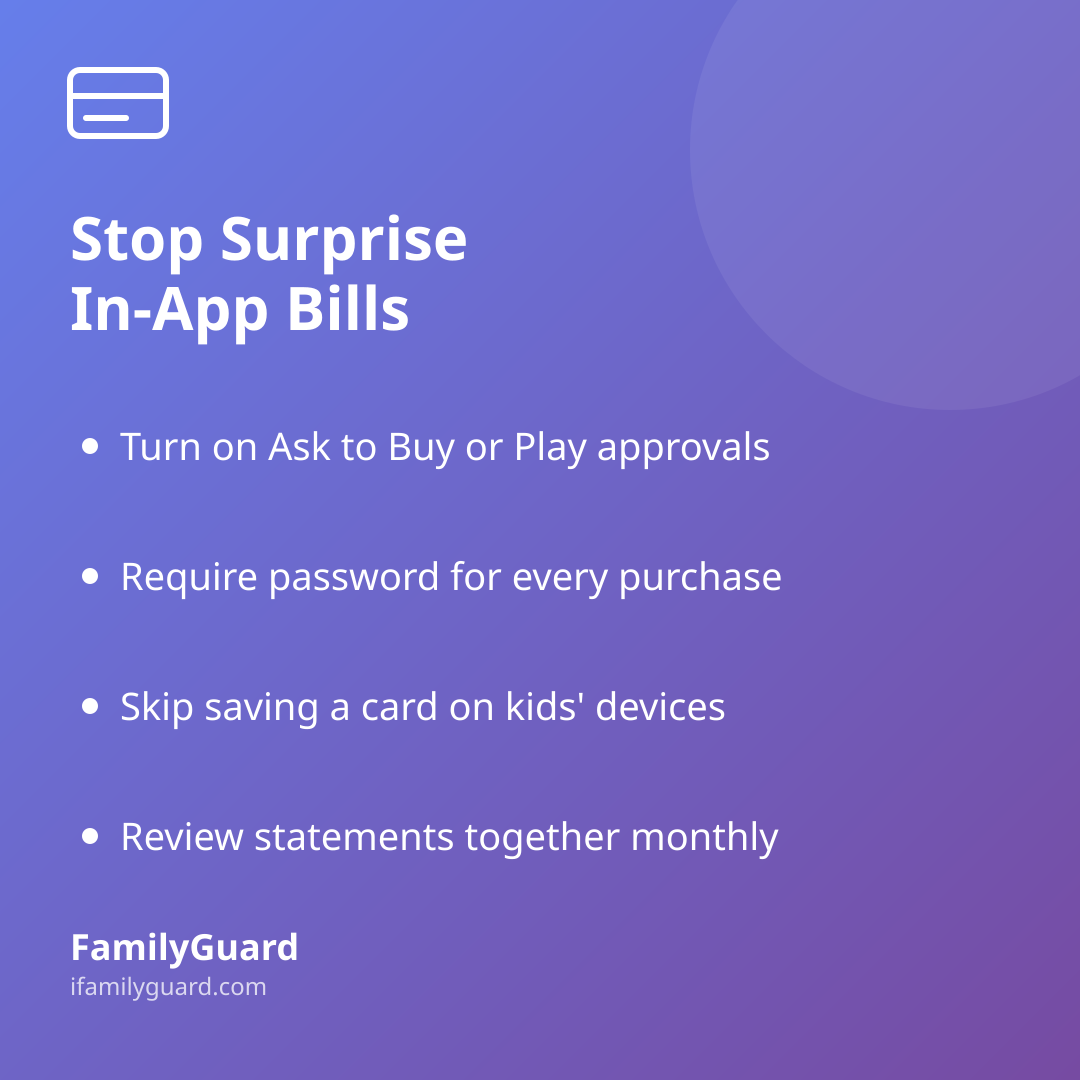
- Apple's Ask to Buy, part of Family Sharing, turns a child's attempted purchase or download — including in-app purchases — into a request. It's sent to a parent's own device for approval or decline before anything is charged. See Apple's support guide to Ask to Buy for setup steps.
- Google Play's purchase approvals, available through a Google family group, work the same way for Android devices: a child's request to buy or download something pauses until a parent approves it. Details are in Google's Play purchase approvals help page.
Both features are free and take about five minutes to set up once a family group exists. They don't require constant supervision — just a quick tap of "approve" or "decline" when a request comes in.
Building a Few Simple Guardrails at Home
Beyond the built-in approval systems, a handful of small habits go a long way:
- Require a password or biometric confirmation for every purchase, not just the first one in a session — most devices let you disable the "stay signed in" window that caused the original Apple case.
- Avoid leaving a card permanently saved on a child's device or shared family profile; a prepaid card, gift card, or small monthly allowance loaded onto the account gives them a real, visible limit.
- Set a spending cap together for older kids who manage their own small budget — this turns the conversation from "no buying anything" into "here's what you get to decide."
- Turn off ads that link directly to purchases where the app allows it, since many surprise charges start with a tempting in-game ad rather than a deliberate choice.
- Check statements together on a set day each month, the same way you might review a first paycheck or allowance — it keeps money visible rather than something that only comes up when there's a problem.
Turning It Into a Conversation, Not a Punishment
The goal isn't to catch a child doing something wrong — it's to help them understand that gems and coins are standing in for real money before they've spent very much of it. For younger kids, that can be as simple as translating a purchase into something familiar: "those 500 coins cost about the same as the ice cream we got yesterday." For tweens and teens managing their own small budget, involve them in setting the limit rather than just imposing one — kids are far more likely to respect a rule they helped write.
The same openness that works well for other family safety habits applies here too. Just as families do best with location sharing when it's discussed together and kept transparent rather than sprung as a surprise — which is the consent-based approach apps like FamilyGuard are built around — talking through purchases before they happen, rather than after a bill arrives, keeps trust intact on both sides.
If a surprise charge does slip through, most platforms allow you to report it. The FTC's consumer guide to in-app purchases walks through how to request a refund directly from the app store, and both Apple and Google have dedicated processes for exactly this situation.
A Small Setup, A Lot of Peace of Mind
In-app purchases aren't a sign that something has gone wrong with your child or your parenting — they're a predictable result of how these apps are designed. A few minutes spent turning on approval settings, plus an open conversation about what virtual currency actually costs, usually solves the problem completely. It's one of those rare corners of digital parenting where the fix is mostly a setting, not a struggle.
Sources
- Federal Trade Commission — Apple Inc. Will Provide Full Consumer Refunds of At Least $32.5 Million to Settle FTC Complaint It Charged for Kids' In-App Purchases Without Parental Consent (2014)
- Federal Trade Commission — In-app purchases (Consumer Advice)
- Apple Support — Approve what your child can purchase and download with Ask to Buy
- Google — Purchase approvals on Google Play (Google For Families Help)